
As we move into 2026, the landscape of cybersecurity is evolving faster than most individuals can keep up. Social engineering schemes have become more sophisticated than ever; deepfake AI video and voice technologies are now so convincing that even trained professionals can be fooled. Nation-state-level actors are using AI to clone voices, replicate faces, and mimic writing styles to impersonate CEOs, colleagues, and family members.
These attacks can approach you from anywhere – from SMS, WhatsApp, and Facebook messages to YouTube videos that mimic your bank or employer. The next “instruction” video you watch could easily be an AI-generated trap, fine-tuned by your own recommendation feed to convince you to run a script that silently takes over your system – gaining access to your Google account and password manager.
At the same time, new AI-assisted hacking tools are testing software for vulnerabilities at scale, leading to an increase in zero-day exploits. Combined with the constant wave of corporate data breaches, it is now best to assume that your personal information – full name, social security number and address data – has already been leaked.
In this environment, individual cybersecurity must be treated as seriously as enterprise security once was. The following steps are designed to help you secure your personal digital world in a practical, robust way.
1. Purchase a Physical Safe for Sensitive Information
Everything begins with physical security. Buy a reliable fireproof and waterproof safe, ideally one that has a mechanical combination lock and backup key. This safe becomes your air-gapped vault – a place to store all sensitive information completely separated from the internet. Inside it, keep your password manager recovery keys, backup hardware security keys, seed phrases for digital wallets, multi-factor authentication (MFA) recovery codes, and any sensitive identification documents.
This kind of sensitive information should never be stored on a computer connected to the internet – not in a cloud service, not in your password manager, not even in encrypted files. If it is digitized and connected to the internet, it can be stolen. Physical isolation is your ultimate failsafe against compromise.
2. Get a Password Manager and Lock It Down
A password manager remains one of the most critical cybersecurity tools, even though some argue it centralizes risk. The truth is that without one, you’ll inevitably reuse passwords, which is far more dangerous. Choose a reputable password manager that supports passwordless login and fast auto-logout features. There’s a lot to choose from, I’ve narrowed it down to the following…
Enable automatic logout within one minute of inactivity. Leaving a session open exposes you to trojan or remote access malware that can hijack your unlocked vault. Avoid typing your master password manually whenever possible – instead, use biometric or hardware-based authentication. Assume that any password typed on your device could one day be key-logged.
Generate a unique, random password for every website. A strong password manager, when properly secured, makes this effortless and dramatically reduces the blast radius of any breach.
NOTE: Do NOT use your Password Manager as your TOTP MFA, use a hardware security key instead (see below)
3. Device Biometrics Over Passwords
Typing passwords is a risk because malware can record every keystroke. Enable device biometrics, fingerprint or facial recognition, wherever possible.
On a Windows PC, you can add a reliable USB fingerprint scanner for under $40 from Amazon. On macOS and most mobile devices, biometrics are already built-in. Configure your password manager, operating system, and major apps to use biometric or password-less sign-in so you’re not repeatedly entering sensitive credentials on your computer. It’s faster, safer, and more convenient.
4. Use a Hardware Security Key for MFA
Hardware security keys, such as YubiKey (https://www.yubico.com/), offer the strongest form of multi-factor authentication available today. Unlike SMS codes or app-based authenticators, hardware keys are resistant to phishing, SIM-swapping attacks, and remote account takeovers. Authentication occurs only when the physical key is present and tapped, making it nearly impossible for an attacker to bypass from afar.
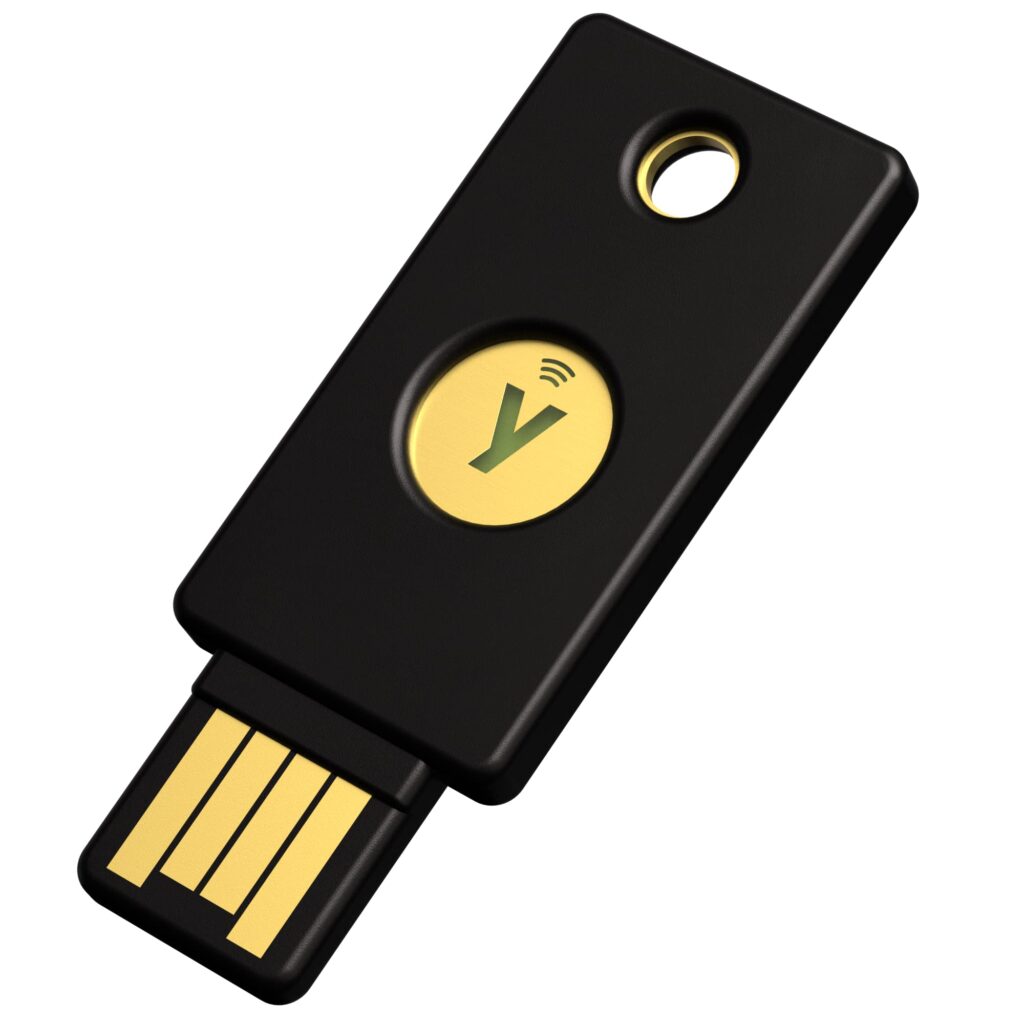
Use hardware keys to protect your most critical accounts first, including your primary email, password manager, financial institutions, and government services (such as irs.gov and ssa.gov). These accounts often act as “keys to the kingdom,” and securing them significantly reduces the blast radius of any breach.
Always register at least two hardware keys: a primary key for daily use and a backup key stored securely in a safe or lockbox. This prevents lockouts while maintaining strong security. Once configured, even a compromised password is useless without physical possession of the key – turning many common cyberattacks into dead ends.
5. Set Up MFA on All Critical Websites
If a website supports hardware security keys for multi-factor authentication (MFA), use them. If it doesn’t, and instead supports time-based one-time passwords (TOTP) for MFA, that’s the next best option. In that case, you can configure TOTP through your YubiKey using the Yubico Authenticator app.
Though it’s sometimes impossible to get around, avoid using SMS-based authentication when possible, as text messages can be intercepted or redirected through SIM hijacking. If available, prioritize security keys or app-based codes. Apply MFA everywhere that houses sensitive or financial information – including your email provider, cloud storage, and password manager.
6. Windows OS Lockdown
If you’re using Microsoft Windows, avoid using an Administrator account for everyday tasks. Instead, create a separate Standard User account with its own password and use that account for daily work. This simple separation dramatically reduces risk: if malware or a malicious script runs under your user session, it won’t automatically gain the elevated system-level privileges needed to install software, alter security settings, or spread laterally across your system.
Take advantage of Windows Hello for sign-ins using biometrics such as fingerprint or facial recognition, and configure a unique PIN that is not reused anywhere else. Unlike traditional passwords, Windows Hello credentials are device-bound and resistant to phishing, making them significantly safer for local authentication.
Finally, enable BitLocker full-disk encryption if your Windows edition supports it. BitLocker protects your data at rest by encrypting the entire drive, ensuring that files remain unreadable even if the hard drive is removed or the device is stolen. Store your BitLocker recovery key securely offline in your safe. With encryption enabled, a lost laptop becomes an inconvenience, not a data breach.
7. USB Hard Drive for Archive Storage (Not a NAS)
For long-term storage of sensitive or irreplaceable data—such as tax returns, legal documents, scanned IDs, family photos, and videos—use an external USB hard drive rather than a network-attached storage (NAS) device. Archive storage has very different security requirements than active, always-on storage.
NAS systems are designed to be continuously connected to your network. While convenient, this also makes them attractive targets for ransomware, credential stuffing, outdated firmware exploits, and misconfiguration errors. Many NAS compromises happen silently, encrypting or exfiltrating data long before the owner realizes anything is wrong. If a device is reachable over the network, it is part of your attack surface.
A USB hard drive kept offline eliminates that risk entirely. When the drive is physically disconnected, malware, ransomware, and remote attackers simply cannot reach it. Connect the drive only when you need to back up or retrieve files, then safely disconnect it when finished. This “air-gapped” approach remains one of the most effective defenses against data loss.
For added resilience, consider using a dual-drive RAID 1 setup or maintaining two identical external drives with mirrored copies of your data. Store one as your primary archive and keep the second in a separate secure location. This protects against hardware failure while preserving the offline security model. When combined with encryption and safe storage, an offline USB archive provides both simplicity and strong protection for your most important data.
8. Set Up a Virtual Machine
If you’re finding yourself frequently having to install unfamiliar software, or you’re a developer who needs to test potentially risky software libraries or untrusted attachments, do it in a virtual machine (VM). Software like VirtualBox, VMware or Windows Hyper-V lets you isolate a secondary operating system that can be easily deleted or restored if compromised.
Treat your VM like a sandboxed quarantine zone. Never log into critical accounts from inside it. The isolation helps prevent malware from escaping into your main system, giving you a safe environment for testing.
9. Anti-Malware Software
Install and maintain reputable anti-malware software. Check the following review site for the most updated testing of antivirus and antimalware software: https://www.av-test.org/en/
On the other hand, the anti-malware software bundled with macOS and Windows has improved significantly over the years, and in many cases now outperforms third-party products. It’s always best to evaluate your options.
In any case, ensure real-time scanning is active, automatic updates are enabled, and periodic full system scans are scheduled. Avoid running multiple antivirus tools simultaneously, as they can conflict with each other.
10. Lock Your Credit
Your digital life extends far beyond the computer in your home. Your identity lives within institutions that have existed for decades – and beyond. Given the number of data breaches in recent years, it’s prudent to assume your personal information may already be circulating on the dark web. Visit the three major credit bureaus – Equifax, Experian, and TransUnion – and place a free credit freeze on your accounts.
- Equifax: https://www.equifax.com/personal/credit-report-services/credit-freeze/
- Experian: https://experian.com/freeze
- Transunion: https://freeze.transunion.com/tab/product/securityfreeze
This prevents anyone from opening new lines of credit in your name, even if they have your full identity details. You can temporarily lift the freeze when applying for legitimate credit. It’s free, simple, and an essential layer of defense.
11. Create an Account at SSA.gov
Identity thieves sometimes create Social Security Administration (SSA) accounts in other people’s names before the legitimate owner does. If that happens, untangling the issue can be time-consuming and stressful. To stay ahead of this risk, visit SSA.gov, verify your identity through ID.me, and create your account proactively.
Once your account is established, enable all available security options and store your login credentials securely in your password manager. Your SSA account provides access to sensitive information and benefit controls, and protecting it helps prevent unauthorized benefit changes, fraudulent claims, or redirection of payments.
Be sure to setup your hardware security keys (Yubikey) for MFA to ID.me.
12. Create an Account at IRS.gov and Set a PIN
Just as with Social Security, you should proactively create your official account at IRS.gov. Verify your identity through ID.me and establish access before a fraudster has the opportunity to do so on your behalf. IRS accounts contain highly sensitive tax and identity data and are frequent targets during tax season.
One of the most important protections the IRS offers is the Identity Protection PIN (IP PIN). When enabled, the IRS generates a new PIN for you each tax year, and no tax return can be filed under your Social Security number without it. This single step blocks one of the most common forms of tax fraud, where criminals attempt to file early and claim fraudulent refunds.
Again, be sure to also setup your hardware security keys (Yubikey) for MFA to ID.me.
13. Lock Down Your SIM at Your Cellular Carrier
It’s hard to avoid using your cell phone number as MFA for many online accounts. Therefore, this step is important. With SIM hijacking an attacker can bypass SMS MFA and take over your accounts. To prevent this, contact your mobile carrier and be sure to add a PIN or passcode to your account that must be provided before any SIM changes can occur.
Some carriers call this a “port validation PIN” or “number transfer lock.” Once set, it prevents unauthorized number transfers and reduces the risk of SMS interception or account takeover.
14. Anti-Trackers and Anonymous Search
Modern advertising networks track every move you make online. Attackers can use this to their advantage by targeting you in their campaigns. To reduce profiling, use browsers with built-in tracker protection such as the Brave browser. Consider adding extensions like Adguard.
Switch your search engine to one that does not log user queries, such as Startpage or DuckDuckGo. For private browsing, use a reputable VPN like ProtonVPN to encrypt your traffic and hide your IP address. Privacy does not mean isolation – it means minimizing exposure.
15. Schedule an Annual Security Review
Your security posture will decay over time unless you review it. Set one day each year to audit your accounts, change critical passwords, test backups, and review the latest scams perpetuating your areas of the internet.
This habit keeps your defenses fresh and ensures you’re not relying on outdated configurations or expired recovery options. Treat your personal security like a living system that evolves as the threat landscape changes.
(Bonus*) Email Masking
Your email address is one of the most valuable identifiers you have online. Use a service such as Firefox Relay or one built into Proton Pass to generate a unique, masked email for each account you create. These aliases forward messages to your real inbox but hide your true address.
If one of those services is ever breached, you’ll know exactly which company leaked your data, and you can disable that alias instantly. This simple layer of separation dramatically limits how much of your digital footprint can be traced or sold.
Final Thoughts
The line between personal and professional cybersecurity has blurred, and the sophistication of modern attacks means every individual must take responsibility for their own defense. The good news is that security is achievable – not through paranoia, but through structure, awareness, and discipline.
By following the steps above, you establish multiple layers of protection – physical, digital, and behavioral – that make you a far more difficult target.
Security is no longer a one-time setup; it’s a personal practice. The sooner you start, the safer you’ll be when the next wave of threats arrives.
About the Editor: Jason Weber has built several profitable companies in SaaS, IT Consulting, and Corporate Housing, and has worked at top tech firms including Amazon, Hewlett-Packard, and Intel. He holds four issued patents and is passionate about practical Zen, the Flow State, high-tech, and the hustle.